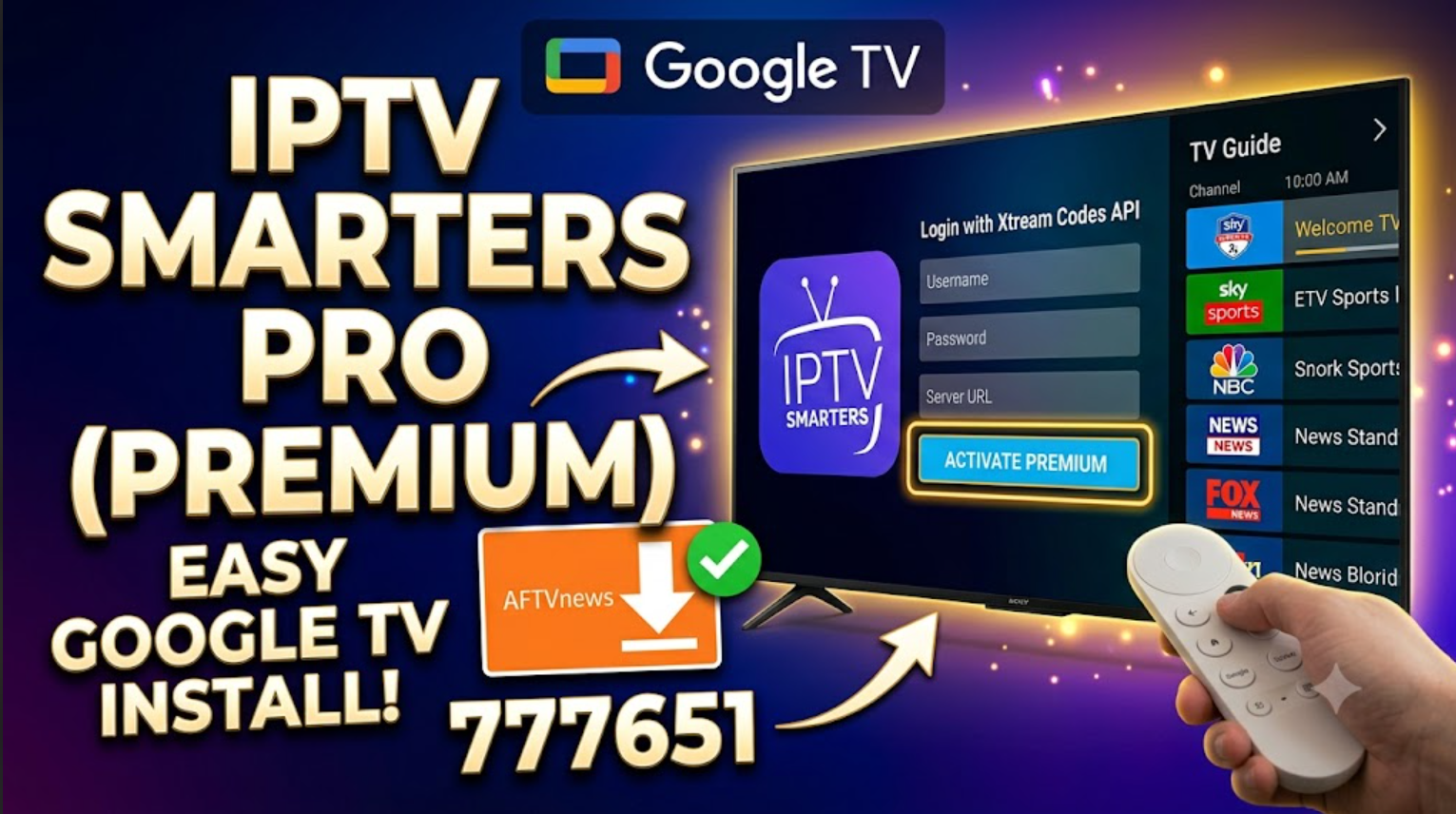
To install IPTV Smarters Pro on your Google TV, the most stable and efficient route is to sideload the official, full Android TV APK. Since Google TV profiles can hide or limit certain media players in the standard Play Store depending on your region, using the Downloader utility gives you the cleanest installation.
Here is the exact step-by-step process to set it up properly.
Step 1: Enable Developer Options on Google TV
Before you can install any app outside the official Play Store, Google TV requires you to unlock developer access.
-
Turn on your Google TV, click your Profile icon (top-right corner), and select Settings (gear icon).
-
Go to System > About.
-
Scroll down to Android TV OS build and click on it 7 times repeatedly until a message appears saying: “You are now a developer!”
Step 2: Install Downloader and Grant Permissions
Next, you need a tool to fetch the installation file.
-
Return to the Google TV home screen and go to the Search tab.
-
Search for Downloader (the orange icon by AFTVnews) and click Install.
-
Once installed, go back to Settings > Privacy > Security & Restrictions > Unknown sources (or Install unknown apps).
-
Toggle the switch next to Downloader to ON. This allows the tool to run installations.
Step 3: Download and Install IPTV Smarters Pro
Step 4: Activating Premium & Configuring Login
Now you can launch IPTV Smarters Pro from your apps library.
-
When you first open the app, select TV as your device configuration type.
-
Accept the user agreement terms.
-
To configure your live streams, choose the method specified by your service provider:
-
Xtream Codes API: Enter a custom name, your unique username, password, and the server URL (Most efficient for loading massive playlists and full Electronic Program Guide/EPG data).
-
Load Your Playlist or File/URL: Paste a direct
.m3uor.m3u8link.
-
💡 Note on the Premium Version
The standalone premium features (like Multi-Screen layout, Picture-in-Picture, or advanced integrated players) are typically activated directly inside the application interface via an in-app upgrade path link or tied directly to specific custom provider builds. If your provider supplied a dedicated Premium/VIP version, use their custom download code in Step 3 instead.